
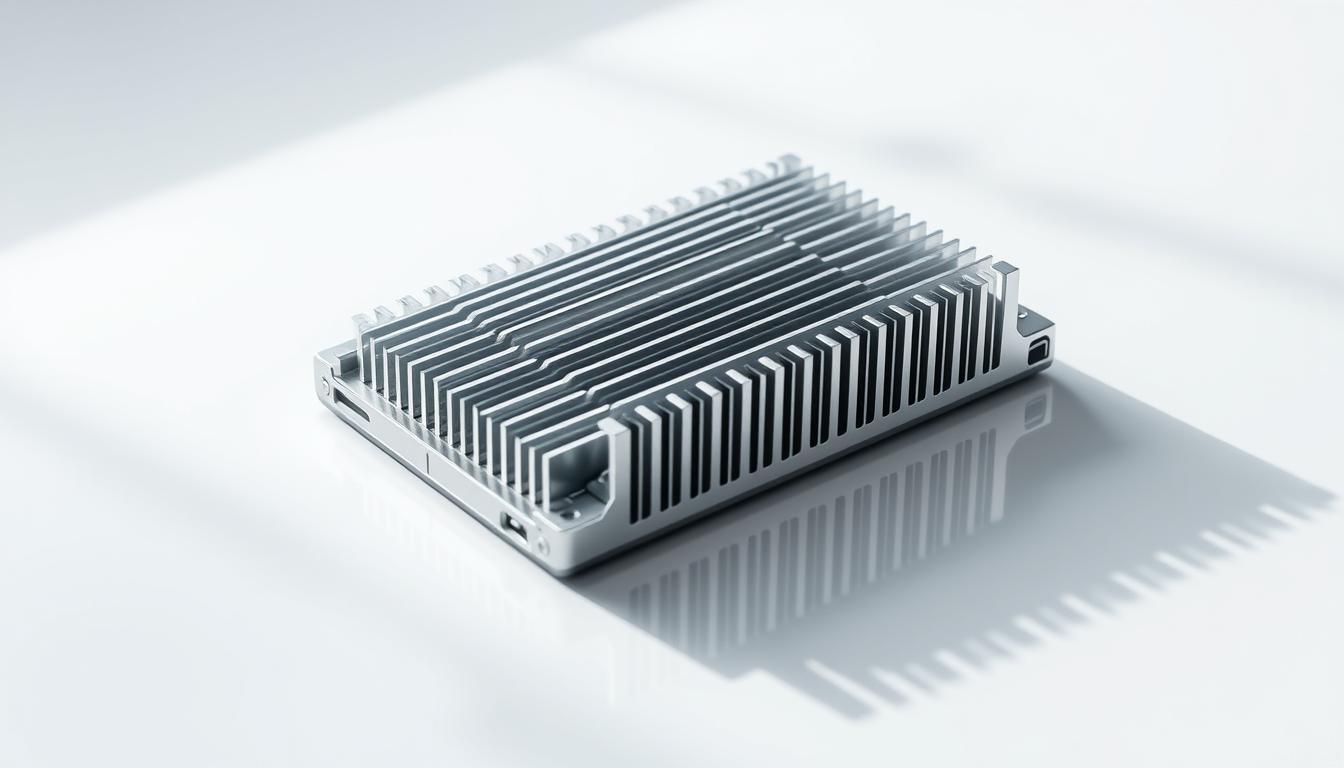
When it comes to storage devices, both SSDs and HDDs have their unique characteristics. Solid-state drives (SSDs), especially M.2 SSDs, are known for their speed and efficiency. However, they can generate significant heat, particularly in high-performance systems. This raises an important question: do you need a heat sink on your hard drive?
Heat generation in SSDs primarily comes from the controller, DRAM, and NAND flash memory. High data transfer rates, especially with NVMe SSDs, can lead to increased temperatures. If these components overheat, it can result in performance throttling, which slows down your system. Brands like Crucial and WD_BLACK highlight the importance of temperature management for optimal performance.
Adding a heatsink can help maintain stable temperatures, ensuring your drive performs at its best. It’s particularly beneficial for gaming consoles and systems with limited airflow. However, not all situations require a heatsink. Signs that you might need one include frequent slowdowns or system crashes during heavy use.
In this article, we’ll dive deeper into the benefits of using a heatsink, how to install one, and tips for optimizing your storage setup. Whether you’re using an M.2 SSD or a traditional HDD, understanding temperature management is key to maintaining peak performance and extending the life of your storage devices.
Understanding Hard Drive Heat and Its Impact
Storage devices, whether SSDs or HDDs, produce heat during operation. This heat is a natural byproduct of their internal processes. However, excessive heat can lead to performance issues, making it important to understand its sources and effects.
How SSDs and HDDs Generate Heat During Operation
SSDs generate heat primarily through their controller, DRAM, and NAND flash memory. These components work together to process data, and their activity increases with more data being read or written. HDDs, on the other hand, generate heat from their moving parts like the spinning disk and read/write heads.
The more data an SSD processes, the higher its temperature rises. This is especially true during large file transfers or simultaneous tasks, which can cause significant heat buildup. HDDs also experience temperature increases, though typically less than SSDs due to their mechanical nature.
The Connection Between Data Transfer Activity and Temperature Increase
Modern SSDs, especially those using the NVMe protocol and PCIe interface, are designed for speed. However, this speed comes at the cost of higher heat generation. The faster data transfer rates mean more heat is produced, which can lead to throttling if not managed properly.
| Device Type | Temperature Range (°C) | Key Components |
|---|---|---|
| SSD | 0 to 70 | Controller, DRAM, NAND Flash |
| HDD | 20 to 50 | Spindle Motor, Read/Write Heads |
Monitoring your SSD’s temperature is crucial. Tools like Crucial Storage Executive can help track temperatures and prevent overheating. If your system shows signs of thermal throttling, such as slowdowns or crashes, it may be time to consider a heatsink.
do you need a heat sink on hard drive
Recognizing when your storage device is overheating is crucial for maintaining performance and longevity. Both SSDs and HDDs generate heat, but excessive temperatures can signal a problem. If your system experiences lag, noisy fans, or crashes during heavy use, it may indicate overheating.
Identifying Signs of Overheating and Performance Throttling
Performance throttling occurs when your SSD slows down due to high temperatures. Look for signs like slowed data transfer speeds or unexpected shutdowns. Tools like EaseUS Partition Master can monitor your SSD’s temperature, helping you catch issues early.
Assessing When a Heatsink Becomes Necessary for Your Setup
A heatsink is especially beneficial for high-performance systems, gaming consoles, or setups with limited airflow. If your SSD frequently throttles or you notice consistent temperature spikes, consider adding a heatsink. For example, gaming on a PS5 with an M.2 SSD can generate significant heat, making a heatsink a wise investment.
| Device Type | Temperature Range (°C) | Key Components |
|---|---|---|
| SSD | 0 to 70 | Controller, DRAM, NAND Flash |
| HDD | 20 to 50 | Spindle Motor, Read/Write Heads |
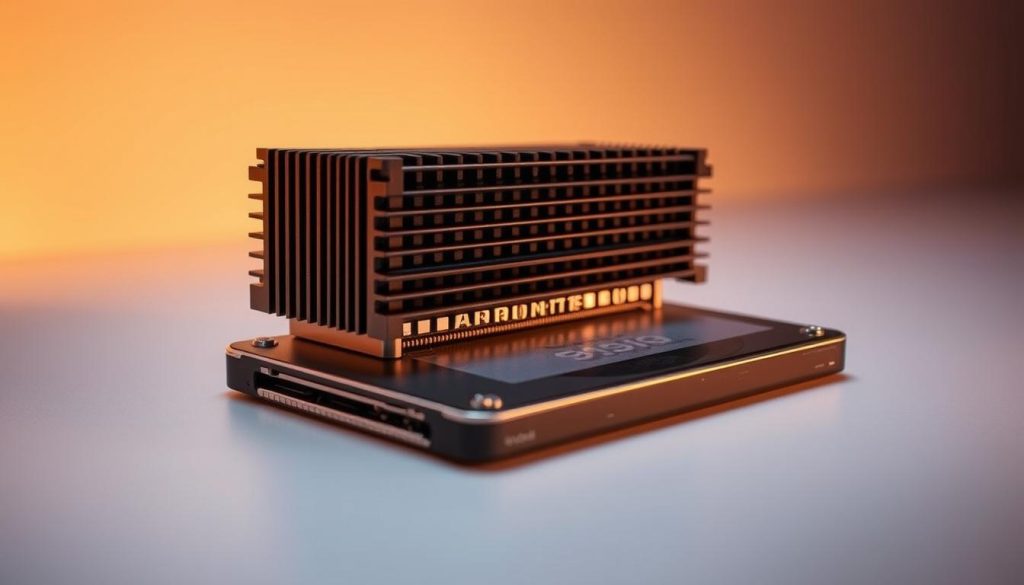
While not all systems require a heatsink, monitoring your SSD’s temperature is essential. If you notice consistent overheating, especially during demanding tasks, a heatsink can help maintain optimal performance and extend your drive’s lifespan.
How to Install and Optimize Heatsink Solutions
Properly managing your SSD’s temperature is essential for maintaining performance and longevity. Installing a heatsink can be a straightforward process if done correctly. Here’s a step-by-step guide to help you get started.
Step-by-Step Guide to Installing a Heatsink on Your M.2 SSD
Start by powering down your system and grounding yourself to prevent static damage. Locate the M.2 slot on your motherboard. Gently remove any protective covering from the heatsink’s thermal pad. Align the heatsink with the SSD, ensuring the thermal pad makes full contact with the drive. Secure it using the provided screws, tightening firmly but avoiding overtightening.
Best Practices for Enhancing Airflow and System Cooling
Optimal airflow is crucial for effective cooling. Ensure your computer case has adequate ventilation. Consider adding case fans to improve air circulation. Keep cables organized to prevent blocking airflow paths. These practices will help maintain lower temperatures and enhance overall system performance.
Using Software Tools to Monitor and Manage SSD Temperature
Utilize software tools like HWMonitor or CrystalDiskInfo to track your SSD’s temperature in real-time. These tools provide insights into thermal performance, helping you identify potential issues early. Regular monitoring ensures your heatsink is functioning effectively and maintains safe temperature ranges.
Conclusion
In conclusion, managing the temperature of your storage devices is crucial for optimal performance and longevity. SSDs, particularly M.2 and NVMe models, generate significant heat during operation, which can lead to performance throttling if not properly managed. While HDDs also produce heat, SSDs are more prone to overheating due to their faster data transfer rates.
Key signs that your SSD might benefit from a heatsink include frequent slowdowns, system crashes during heavy use, or consistently high temperatures. Installing a heatsink can be a straightforward process, especially for M.2 SSDs, and can significantly improve thermal management. Additionally, ensuring good airflow in your system and using monitoring tools like HWMonitor can help maintain optimal temperatures.
If you’re using your SSD in a high-performance setup or gaming console, consider a heatsink to prevent overheating. Regular monitoring and proactive maintenance are essential to ensure your storage device operates within safe temperature ranges. Assess your current cooling solution and upgrade if necessary to keep your system running smoothly and efficiently.


